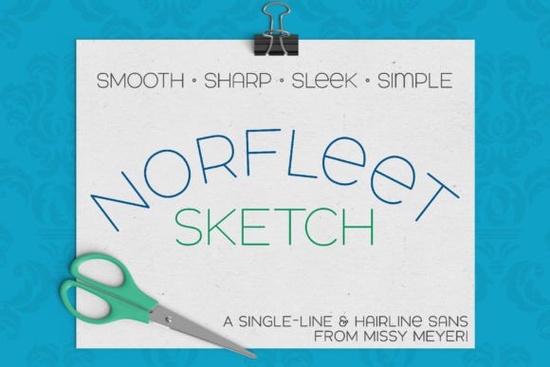
If you have ever tried to use a standard typeface for engraving or foil quilling, you know the frustration. Regular fonts create outlines that machines try to fill in, often resulting in messy double lines. For projects that require a single continuous stroke, you need a specialized typeface. The Norfleet Sketch (single Line) Font is built specifically for this purpose. It offers a clean, elegant sans-serif look that works well for modern crafting and design tasks. Unlike traditional fonts, this tool draws a line rather than creating a shape, making it ideal for specific hardware and software setups.
What makes a single-line font different from standard outlines?
Most digital fonts are designed to be printed on paper or displayed on screens. They are built as outlines with a start and end point that connect to form a closed shape. When you send these to a cutting machine or engraver, the device often traces the outside and inside of the letter. A single-line font, however, is constructed from one continuous path. This means your tool draws the letter exactly once, just like writing with a pen. This distinction is vital for users working with sketch pens, foil quills, or engraving tips where double lines would ruin the aesthetic.
This style fits well within the broader category of simple design styles that prioritize clarity and modern aesthetics. Because the lines are uniform and sharp, it pairs easily with bolder typefaces for contrast. If you are looking for variety, you might also browse through other versatile sans-serif options to find complementary styles for your project headers or body text.
Which version should I download for my software?
One common point of confusion with this product is the inclusion of two different file versions. The download includes Norfleet Sketch One and Norfleet Sketch Two, and choosing the right one depends on your workflow. Version One is a true single-line font made from a single stroke from beginning to end. This is technically precise and works well in CNC programs like Rhinoceros. However, most common design programs will automatically connect the start and end points of these strokes.
If you are proficient in vector software like Illustrator or Inkscape, you can use Version One and manually remove those connections. For most crafters, Version Two is the easier choice. This is a hairline font where the strokes are so close together they appear invisible. It is meant for use in crafting programs like Silhouette Studio, Cricut Design Space, and CorelDRAW. This version requires no tweaking; you can simply type and go. You can find more specific details on the product details page to help you decide.
What tools work best with this typeface?
Because this font is not designed for standard word processing or printing, you need the right hardware to see the best results. It is intended for tools that draw letters with a single line instead of an outline. Popular uses include:
- Foil quilling on cardstock or vinyl
- Engraving on metal or acrylic
- Sketch pens for hand-lettered effects
- Infusible ink pens for fabric projects
- Glowforge scoring for precise markings
It is important to note that due to known issues with Brother Canvas Workspace, single-line fonts may not work reliably in that specific program. Always check the included PDF guide for hints on how to use the font in your specific software. If you prefer a heavier look for cutting rather than drawing, you might consider a stronger weight option instead. However, for drawing tasks, the hairline structure is superior.
How do I pair this with other design elements?
Even though this font looks nice on its own, it shines when paired with other typefaces. Its modern wide stance and smooth curves make it a neutral partner. You can combine it with serif fonts for a classic look or script fonts for a personal touch. The clean lines ensure that it does not compete for attention when used alongside more decorative elements. For those who enjoy experimenting with different typography, exploring a classic alternative can provide interesting contrast in a layout.
Remember that single-line and hairline fonts behave differently than ordinary fonts. They cannot be used for standard body text in documents. Their purpose is strictly for design, crafting, and specialized machining. By understanding the difference between the two included versions, you can save time on adjustments and get straight to creating.
Quick Checklist for Getting Started
Before you begin your project, review these steps to ensure compatibility:
- Check your software: Determine if you need the true single-line version or the hairline version.
- Consult the guide: Open the included PDF for specific program hints.
- Test a sample: Draw a single letter on scrap material to check line continuity.
- Adjust pressure: Ensure your pen or engraving tool pressure is set for fine lines.
- Pair wisely: Combine with heavier fonts for clear visual hierarchy.
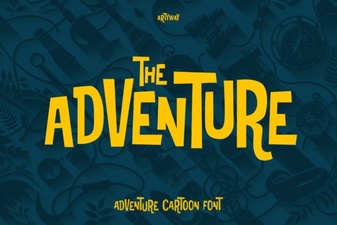 Adventure Fonts for Inspiring Creative Projects
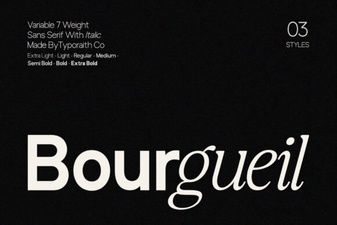 Bourgueil Font: Versatile Design & Creative Projects
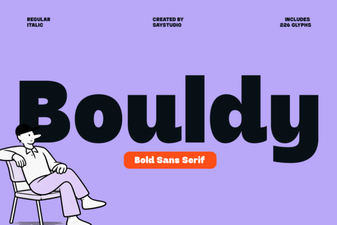 Bouldy Font: Bold Design for Creative Projects
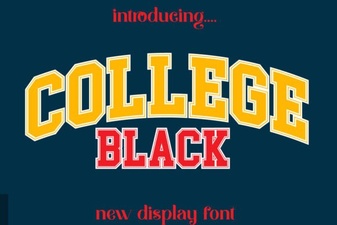 Modern College Black Font Designs for Websites
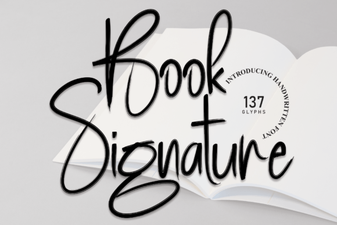 Designing with Distinctive Book Signature Fonts
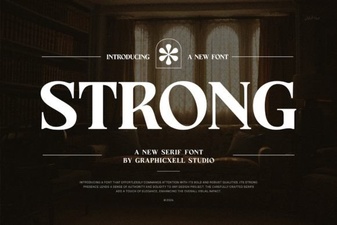 Bold Typography for Effective Website Design